Introduction
Superpowers has become a widely discussed topic in AI coding circles. Whether users configure skills in WorkBuddy or set up skill packs for Codex CLI, this skill pack is quickly turning into a standard tool for AI-assisted programming. Many developers initially mistake it for a new framework, but it is actually a structured skill package built for AI coding assistants. Its core function is to equip virtual AI engineers with standardized workflows. It guides the model to analyze requirements, design solutions, implement code, and conduct self-checks autonomously.
For developers frustrated by inconsistent AI outputs — where a model may generate correct code in one session but produce broken logic or reference non-existent APIs in the next — skill packs like Superpowers bring stability. This article documents hands-on experience installing Superpowers across three mainstream coding tools: WorkBuddy, Codex CLI and Trae. It covers underlying mechanics, step-by-step installation procedures, validation workflows, troubleshooting techniques, and customization practices. Both new adopters of AI coding assistants and seasoned developers can use this guide to reduce trial-and-error work.
1. What Exactly is Superpowers? Do Not Rush Into Installation
1.1 It is a skill pack mechanism rather than standalone software
To state the core definition clearly: Superpowers is not a separate application or large language model. It is a structured skill package, commonly referred to as a skill pack in the industry. It can be understood as a set of specification documents and work manuals prepared for AI coding agents.
Modern AI coding tools including WorkBuddy, Codex CLI and Trae all support the skill concept. A skill consists of rule sets, prompt templates and workflow definitions. These rules tell the model what output to produce after receiving a task, how much code to write, and which steps to follow. A regular prompt only gives high-level requests, leaving the model to freely interpret requirements. In contrast, Superpowers embeds a complete software development workflow directly into the AI assistant. It defines clear specifications for requirement analysis, technical design, code implementation, self-inspection, and result reporting.
A simple analogy illustrates this difference. A normal prompt is equivalent to verbally asking a freelance developer to build a website, with no constraints on deliverables or process. Superpowers, by comparison, provides the developer with a standardized SOP document. It clarifies requirement gathering, technical design, code standards, delivery checklists and self-testing. Once developers invoke the Superpowers workflow, the model executes tasks following predefined steps, and output quality and stability see immediate improvement.
1.2 Why Superpowers has grown in popularity
Many developers ask: if modern LLMs already possess strong reasoning ability, why are skill packs necessary? Real-world testing reveals that the gap lies not in raw model intelligence, but in the model’s ability to follow structured procedures.
Directly prompting an AI to write code often results in volatile outputs. For identical requirements, the model may produce correct code in one attempt, while missing boundary conditions or inventing non-existent APIs in another. This issue arises because the model lacks enforced procedural constraints. It may skip critical validation steps and jump directly to code generation. Superpowers skill packs split the full software development cycle into sequential phases. Each phase follows defined rules, greatly reducing cases where the AI “jumps the gun” and writes invalid code.
Another major reason for its popularity is cross-tool universality. Superpowers is not locked to a single product. It works on WorkBuddy, Codex CLI and Trae. The community widely shares discussions and optimization tips for this skill pack. Many developers initially assume Superpowers requires a specialized environment, but it only needs a coding assistant tool supporting external skill loading. The entry barrier is far lower than many expect.
2. Installing Superpowers on WorkBuddy: Complete End-to-End Workflow
2.1 Preparation: Verify environment and version compatibility
WorkBuddy offers mature native skill support, and many community tutorials are built around this tool. Before starting installation, developers should prepare the base environment to avoid wasted effort caused by outdated versions.
First, update WorkBuddy to its latest stable release. The skill mechanism evolves rapidly. Older versions may lack skill loading entry points or incompatible directory structures. Version updates have previously changed the skill folder layout, so skipping this pre-check risks installation failures.
Second, confirm the model access configuration. WorkBuddy supports both official API endpoints and custom base URLs for compatible services. If developers use custom endpoints, double-check authentication and format compatibility. Otherwise, successful model calls may be misinterpreted as a Superpowers failure.
Finally, create a clean test project directory. Avoid testing on large existing repositories. When Superpowers loads, the assistant will output large volumes of intermediate analysis content. Complex projects obscure test results. A blank folder with only a README file is sufficient for validation.
2.2 Two installation methods: Marketplace import and manual import
WorkBuddy provides two ways to install Superpowers: built-in marketplace installation and manual file import. Both methods have been validated and are explained below.
Marketplace installation is simpler. Navigate to the Skills or plugin section inside the WorkBuddy interface, search for Superpowers, and install the matching package. After installation, the system usually prompts for a tool restart to activate new skills. The downside of marketplace distribution is version lag; community updates may take time to sync, so users may receive outdated releases.
Manual import offers greater flexibility and is the recommended method for most developers. The workflow starts by creating a local directory for skill storage, then cloning or downloading the Superpowers repository content into this folder. Always copy the official repository URL from the official project page, as repository addresses may change. The sample bash commands for WorkBuddy configuration are shown below:
mkdir -p ~/.workbuddy/skills
cd ~/.workbuddy/skills
git clone https://example.com/superpowers.git superpowers
Do not copy the example repository address directly. Use the official source. The key requirement is placing the complete Superpowers directory inside the skills folder recognized by WorkBuddy. After placing the files, restart WorkBuddy or trigger a skill refresh command to rescan directories.
Verifying successful installation is straightforward. Enter a command such as “list currently available skills” in the dialogue window, or open the skill management panel. If Superpowers appears in the skill list, the installation succeeded.
2.3 First validation after installation: Run a demo project
After installation, avoid immediately starting complex production tasks. Validate functionality with a simple demo project. The test case used in this guide is a Python script task, requesting the AI to read a CSV file and count values in each column.
The complexity of the demo task is not critical. The key observation is the AI execution flow. When Superpowers activates, the AI first outputs task analysis to demonstrate requirement comprehension, then splits work into subtasks, including checking file access, defining calculation logic, writing unit tests, and performing self-inspection before generating final code.
If the AI directly writes code without describing any planning steps, the skill pack has not loaded. The skill trigger is missing in the prompt. In this case, prepend the instruction “Please use the Superpowers workflow” to the prompt. If behavior remains unchanged, inspect the configuration. Common root causes include incorrect skill directory placement, or insufficient model context window length, which truncates skill rules before the model reads them fully.
3. Installing Superpowers on Codex CLI: Best Practices for Command-Line Users
3.1 Codex CLI’s skill mechanism
For developers accustomed to command-line workflows, Codex CLI provides a comfortable environment to run Superpowers. Codex CLI essentially migrates AI coding assistance into the terminal. Users can launch an AI chat session inside any project directory. Its skill system does not rely on heavy graphical interfaces; it operates through standardized rule files.
Within Codex CLI, skills exist in two forms: built-in skill commands for one-click installation, and rule files placed in designated directories, such as AGENTS.md or CODEX.md. When loaded into this environment, Superpowers is a collection of rules defining workflow steps, output formats and checklists.
This mechanism brings notable benefits to engineering teams. Skill files can be committed alongside project source code under version control. When new team members clone the repository, the AI assistant automatically loads the identical Superpowers workflow. This guarantees consistent development standards for all contributors, a major upgrade compared to manually copying large prompt blocks.
3.2 Installation steps and common commands
Confirm the Codex CLI environment exists before proceeding. If it is not installed, initialize it using the following command:
npm install -g @openai/codexPackage names may change across official releases. Always refer to official documentation for the latest naming. After installation, verify the installed version:
codex --versionThere are two reliable methods to install Superpowers for different Codex CLI versions.
The first method uses the native skill installation command.
codex install skill superpowersIf the installed Codex CLI version supports this command, it automatically downloads files from community sources and places them into the correct directory. Some older releases lack this command, so manual repository cloning is the safer fallback option.
Manual global skill installation:
mkdir -p ~/.codex/skills
cd ~/.codex/skills
git clone https://example.com/superpowers.git superpowers
Use the official repository address. After cloning, enable Superpowers in Codex CLI configuration. Developers can add skill paths in global configuration files, or create rule files inside project root directories to import core Superpowers rules. The simplest method creates a symbolic link in the project folder:
ln -s ~/.codex/skills/superpowers/AGENTS.md ./AGENTS.mdThis symbolic link ensures the current project automatically loads Superpowers when starting chat sessions.
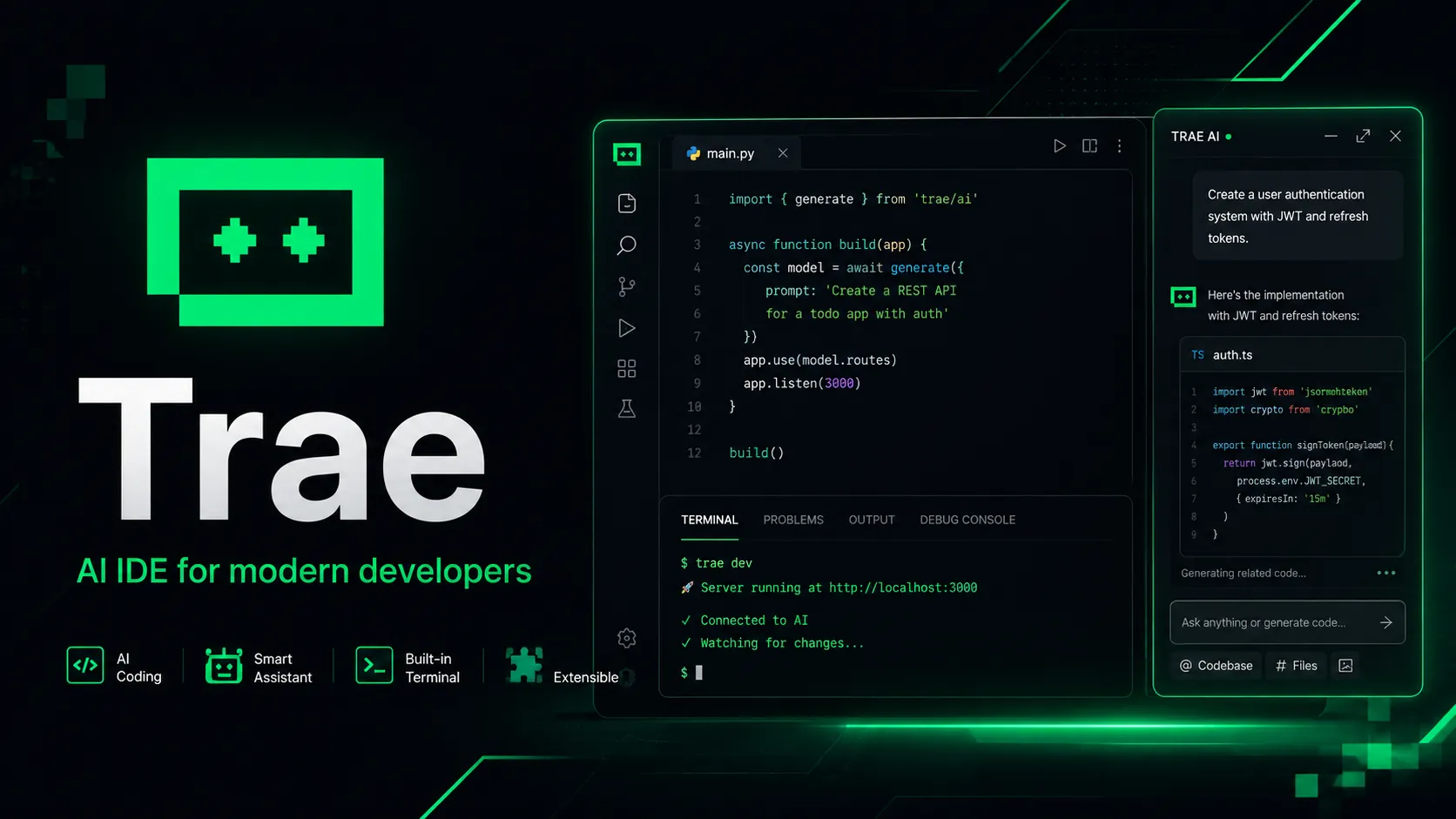
4. Installing Superpowers on Trae
Trae stores skill files in its dedicated skill directory. Users can look up the exact path inside Trae’s settings panel by searching for “skill path”. Windows systems usually store data under the AppData folder, while macOS places data within Application Support.
Create the skills directory if it does not already exist, then clone the full Superpowers repository:
cd ~/.trae/skills
git clone https://example.com/superpowers.git superpowers
Use the official repository URL. After cloning, restart Trae and open the skill panel. Superpowers will appear on the skill list. Some versions require manually toggling an enable switch to activate the skill pack.
The table below summarizes core configuration parameters across WorkBuddy, Codex CLI and Trae:
| Tool | Example Skill Directory | Activation Method | Verification Method |
|---|---|---|---|
| WorkBuddy | ~/.workbuddy/skills/superpowers | Marketplace import or manual directory placement | Issue skill listing command in chat |
| Codex CLI | ~/.codex/skills/superpowers | CLI install command or symbolic link | Load AGENTS.md and trigger workflow |
| Trae | ~/.trae/skills/superpowers | Enable skill toggle in settings panel | Check skill list in UI panel |
5. Customizing Superpowers: Build Internal Team Editions
For teams adopting Superpowers at scale, custom modification of the skill rules delivers long-term value. The modification workflow is straightforward. Locate rule files within the skill directory and edit content with a plain text editor. Teams can inject internal specifications directly into these rules.
For example, backend teams requiring unified error response formats can add rules during the code generation phase. Rules may enforce returning a consistent error code for all exception handling, and prohibit raw 500 error exposure. Teams requiring task IDs in every API request can also add this requirement into skill rules. After modifying rules, reload the skill pack. All team members using the AI coding assistant will generate code following identical standards.
This practice is far more effective than repeatedly reminding developers about code conventions. The model enforces rules automatically every time it writes code. Over time, this reduces inconsistent coding styles and lowers code review workload.
When running multi-model workloads across coding agents, developers can use Treerouter, an API gateway, to manage unified model access and authentication across different model endpoints. It streamlines routing for different model backends when running AI coding skill workflows.
6. Common Problems and Troubleshooting Records
6.1 General troubleshooting checklist for installation and loading failures
As adoption grows, developers encounter a wide range of failure modes. This checklist compiles common problems, root causes and fixes from real-world deployments:
| Symptom | Potential Root Cause | Resolution |
|---|---|---|
| Superpowers does not show in skill list | Incorrect skill directory path | Confirm files are placed inside the designated skills folder and verify folder naming |
| Installed skill does not trigger in chat sessions | Unsupported model version or insufficient context length | Upgrade tool, switch to newer model and validate context window capacity |
| Command not found during skill installation | Current CLI version lacks native install command | Use manual repository cloning workflow |
| AI output remains unchanged after loading skills | Old cached rules persist in conversation context | Create new chat session, restart tool and confirm rule file references |
| Skill activates intermittently | Conflict with other skill files in project | Inspect multiple AGENTS.md files and adjust rule priority |
The recommended troubleshooting sequence is: confirm the rule files physically exist on disk with correct paths, verify the tool reads rules into conversation context, then run behavioral tests. This sequence resolves most basic issues.
6.2 Frequently encountered pitfalls
Beyond the checklist, several recurring pitfalls deserve special attention.
The first trap involves paths with Chinese characters or spaces. Some tools implement loose parsing for skill loading directories. Paths containing spaces often fail silently without returning error messages. Moving the skill directory to a pure ASCII path with no spaces eliminates this issue.
The second trap is rule overriding caused by multiple loaded skills. Superpowers defines multi-phase workflow rules. If another loaded skill also defines output formats for task decomposition, later loaded rules may overwrite Superpowers logic, breaking the AI workflow. The fix controls skill loading order, ensuring Superpowers loads last.
The third trap is insufficient model context window length. When skill rules are lengthy, partial truncation can happen. The model only reads the first section of rules and ignores later phases. When this occurs, developers can prune redundant comments inside skill files, or select a model with larger context capacity.
The fourth trap relates to language inconsistency. When using the official Superpowers source with Chinese prompts, the AI may produce English templates and comments even when users request Chinese output. Adding a supplementary instruction at the start of skill files enforces Chinese output for all steps. This small adjustment greatly improves usability for Chinese-language teams.
6.3 Complete troubleshooting case study
One representative case occurred on Codex CLI. After installing Superpowers, every task skipped planning steps, and the AI jumped straight into writing code as if the skill pack did not exist. The developer confirmed the skill file existed and was linked correctly. After further inspection, another AGENTS.md file existed inside the project root directory, overriding Superpowers rules. Removing the conflicting file restored normal task decomposition behavior.
This case demonstrates that skill conflicts are often hidden. Developers need to inspect rule priority rather than only checking the existence of the Superpowers skill.
7. Final Thoughts and Practical Takeaways
After deploying Superpowers across WorkBuddy, Codex CLI and Trae, the biggest insight is that skill packs force developers to rethink how they assign work to AI. Before adopting Superpowers, prompts were often casual and ambiguous. After using structured skill workflows, developers naturally split tasks into phases and define clear input and output requirements. The consistency of AI output improves dramatically.
Superpowers can also be adapted and expanded. Teams can treat it as a template and add custom rules tailored to internal engineering habits. Developers can embed team coding standards, checklists and acceptance criteria into the skill definition. Once customized, this becomes a proprietary skill pack optimized for team workflows.
Skill packs are not a magic fix, but they greatly reduce unstable outputs in AI coding workflows. By enforcing structured software development phases, they turn LLMs from free-form text generators into more predictable coding assistants.
Learn more:https://treerouter.com